
Azure Data Factory and Azure Databricks Work Together to Build Robust Data Pipeline for Large Data Process
Azure Data Factory is a cloud-based data integration service that allows you to create data-driven workflows in the Azure cloud for orchestrating and automating data movement and data transformation. If you are familiar with Microsoft BIDS (Business Intelligent Development Suit) and used to use SSIS (SQL Server Integration Service) on-prem, you might see Azure Data Factory (we will call it ADF) as a counterpart of SSIS on Azure cloud. ADF is also a key component if you’re looking to data migration on cloud.
ADF is actually a data platform that allows users to create a workflow that can ingest data from both on-prem and cloud data stores, and transform or process data by using integrated computing service such as Synapse and Azure Databricks (we will call it ADB). Then, the results can be published to an on-prem or could data store e.g. SQL Server or Azure SQL Database for business intelligence (BI) applications (Tableau or PowerBI) to consume.
ADF inherit most of key components from SSIS such as Stored Procedure and Script. By leveraging powerful data processing capabilities of Stored Procedure, you can conduct almost any data manipulation and transformation; Script is fully compatible T-SQL syntax so that you can execute your business logic in a programming way not only SQL statement. Besides that, the most powerful component is ADB support. ADB is now data engineering industry standard, we talked about it many time on previous post. Now, let’s see how do we efficiently proceed out data using ADF and ADB.
By considering the common development practice, the most used functions in ADF are Stored Procedure, Script and Notebook. In this use case, Store Procedure is for logging pipeline execution progress or exceptions; Script is for conducting pre-validation and checking; Notebook is conducting the main data process and business logics.
SSIS and ADF Comparison
SSIS is one of the most powerful ETL tool for on-prem architect; ADF is the one for Azure cloud, they are very similar because they are all Microsoft product, I would say if you use SSIS before then almost no adopt and pickup cost on ADF, we can do a simple comparison between these two different era product
| Feature | SSIS | ADF |
|---|---|---|
| Name | SQL Server Integration Service | Azure Data Factory |
| Platform | On-Premise | Azure Cloud |
| Type | Package (dtsx) | Pipeline |
| Editing | SSIS Toolbox | Author |
| Connection | SSIS Connection Manager | Linked Service |
| Ingestion | Data Flow Task | Data flow |
| Function Group | SSIS Control Flow Item | Activities |
| Computing | SQL Server Database Engine | Integration runtimes |
| Output Format | XML | JSON |
| Git Integration | N/A | Available |
| Deployment Template | N/A | ARM template |
| Data Source/Target | SSIS Connection Manager | Datasets |
| Component Logic | Connection Arrow | Lookup activity |
Setup Parameters for Pipeline
we don’t use parameters very often in SSIS but variables, but in ADF that is very important and put in very obvious place in pipeline main edit window. Parameters provides interface within pipeline’s activities, especially with ADB notebook. That is the main way to pass global parameter value to ADB notebook for data processing. Setup parameters is very easy by GUI, just click new button and fill in name, type and default value.

Create Base Parameters for ADB Notebook
when we integrate ADB data process in ADF pipeline, ADB notebook usually has dependencies either with other activity or pipeline. In another word, ADB either needs to receive values for its parameters or provides output for other activity. In our use case, out ADB notebook has values for its 3 parameters
- notebook_path: directory which the notebook located in DBFS
- configuration_file: JSON file which notebook needs to parse and retrieve values from
- environment_params: environment indicator, DEV, SIT, PAT, PROD
We first create a Notebook activity, then choose proper connection in Databricks Linked Service to be able to create handshake with ADB.
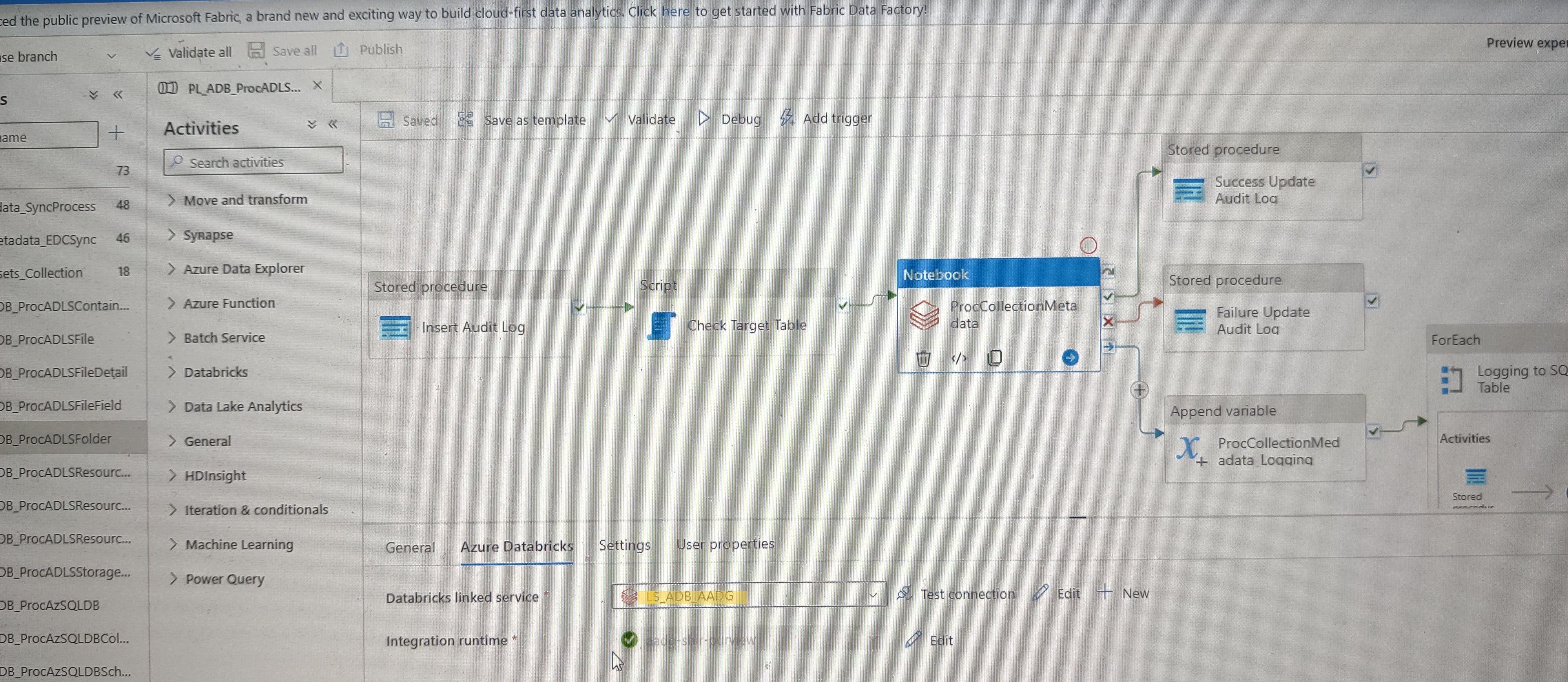
Now, let’s move to Setting tab to configurate the activity parameters for ADB notebook. In Notebook path, it’s very obvious, we need to provide the directory information, here we would use the value from pipeline parameter of notebook_path

Next, it’s Base parameters on programming within the ADB notebook, we need to pass value of configuration_file and environment_params to ADB through the pipeline parameters.

ADB Reading the Parameters Passed from ADF
We have done everything in ADF and next we will take look at ADB notebook to see how do we receive the value from ADF. We need to use dbutils function to get the value from outside ADB
dbutils.widgets.get(“
“)
1 | configuration_file = dbutils.widgets.get("configuration_file") |
1 | %run ../config/env_config $configuration_file = $configuration_file $environment_params = $environment_params |

Work with ADF Stored Procedure
It’s very similar with SSIS Execute SQL Task, ADF named it as Store Procedure to execute stored procedure in AZ SQL database. The main configuration is on Setting tab and it allows us choose AZ SQL database from pre-defined Linked Service and stored procedure from drop-down list once we connect to SQL database. It also lists all parameters of the store procedure with their type and we can assign default value for them by hard coding or pipeline variables.

Work with Script Activity
Another very useful activity/function is Script, we can run T-SQL script with both condition and looping logic against SQL statement. We can also pass value for script parameter from pipeline parameter/variable in Script parameters setting. For example, our script needs value from pipeline parameter for extract starting date (extractFrom), then we create a parameter extractFrom, define type as Datetime, value is pipeling().parameters.ExtracFrom. Then we can use that parameter in our script.


Work with Lookup Activity
In SSIS, we need to manually setup input/output parameter in Execute SQL Task for other component lookup, but in ADF, it has separated activity Lookup to provide output value for other activities. In our use case, we create Lookup activity, in Setting->Query, we write our query here for output value EXTRACT_DATE.

We will use that output extract date in our Copy data activity.


Our name of loop up activity is “Lookup Extract From”, in query where clause, we use that activity output first row of EXTRACT_DATE.